
What it does
Built around the way a school year actually goes.
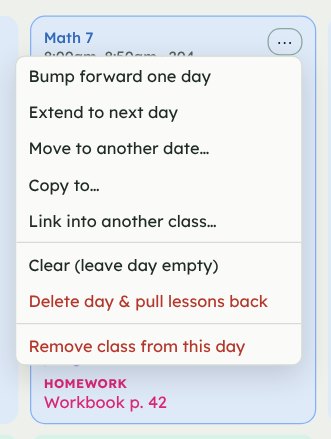
Schedules that bend
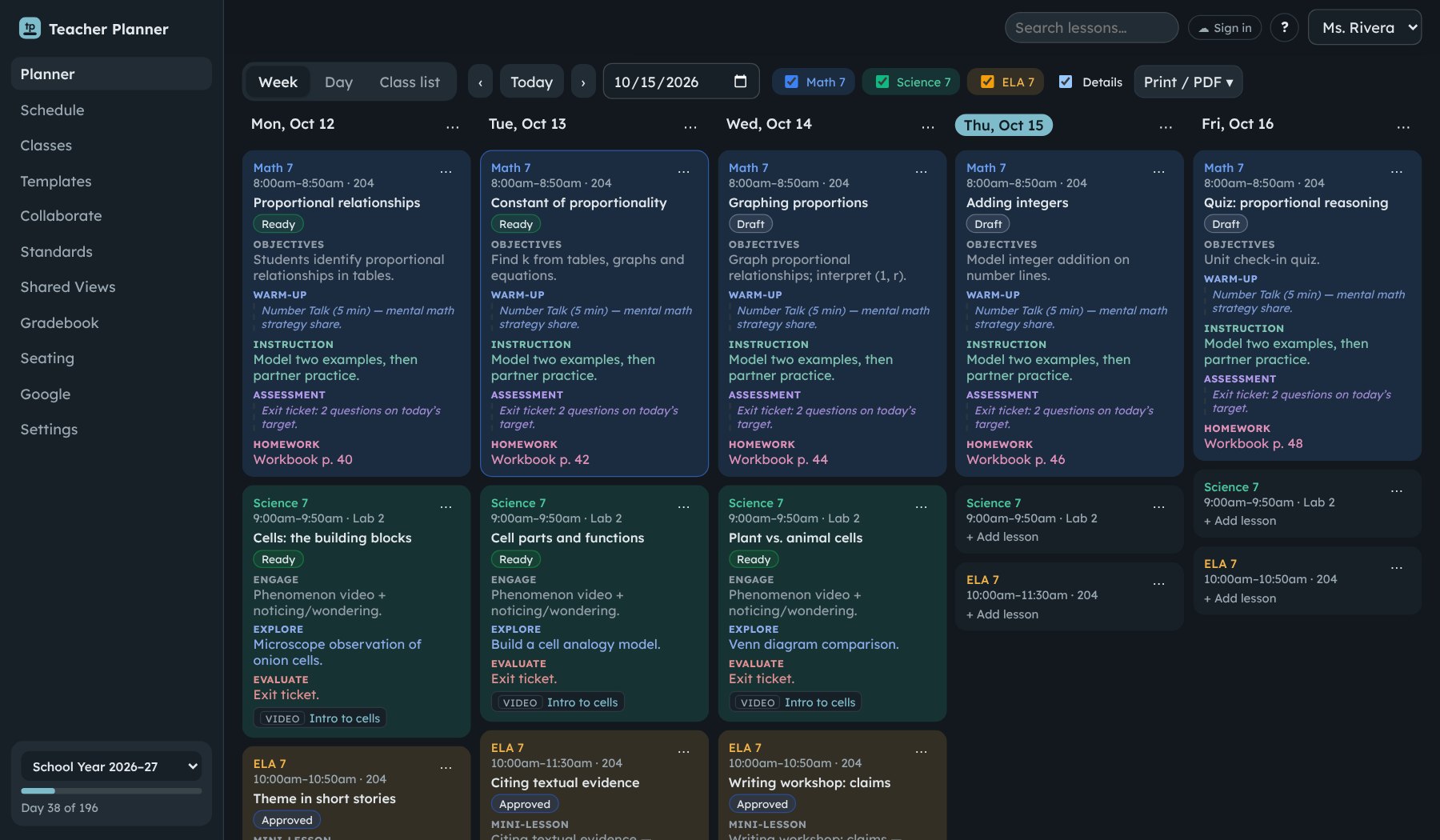
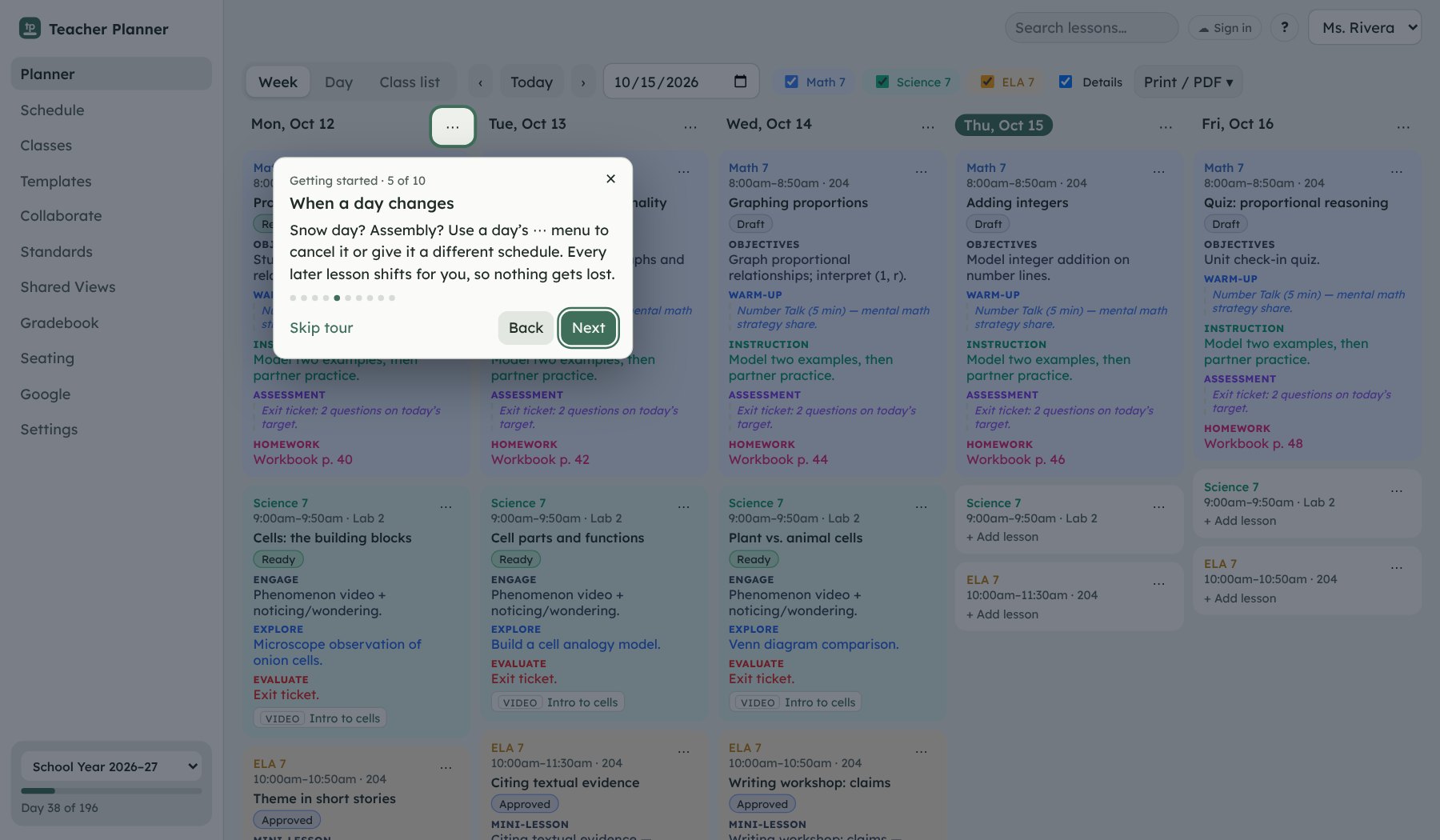
Snow day? Bump everything forward in one click.
Lessons stay in order for each class, so when a day is lost to a snow day, an assembly or a fire drill, every later lesson slides to the next class meeting on its own. Extend a lesson that needs another day, drag it to a new date, copy it to another class, or pull everything back.
- Weekly, A/B week and rotating "Day 1, Day 2…" schedules
- Cancel a day from its menu and every class shifts
- Undo anything, and reuse this year's lessons next year
Your school calendar
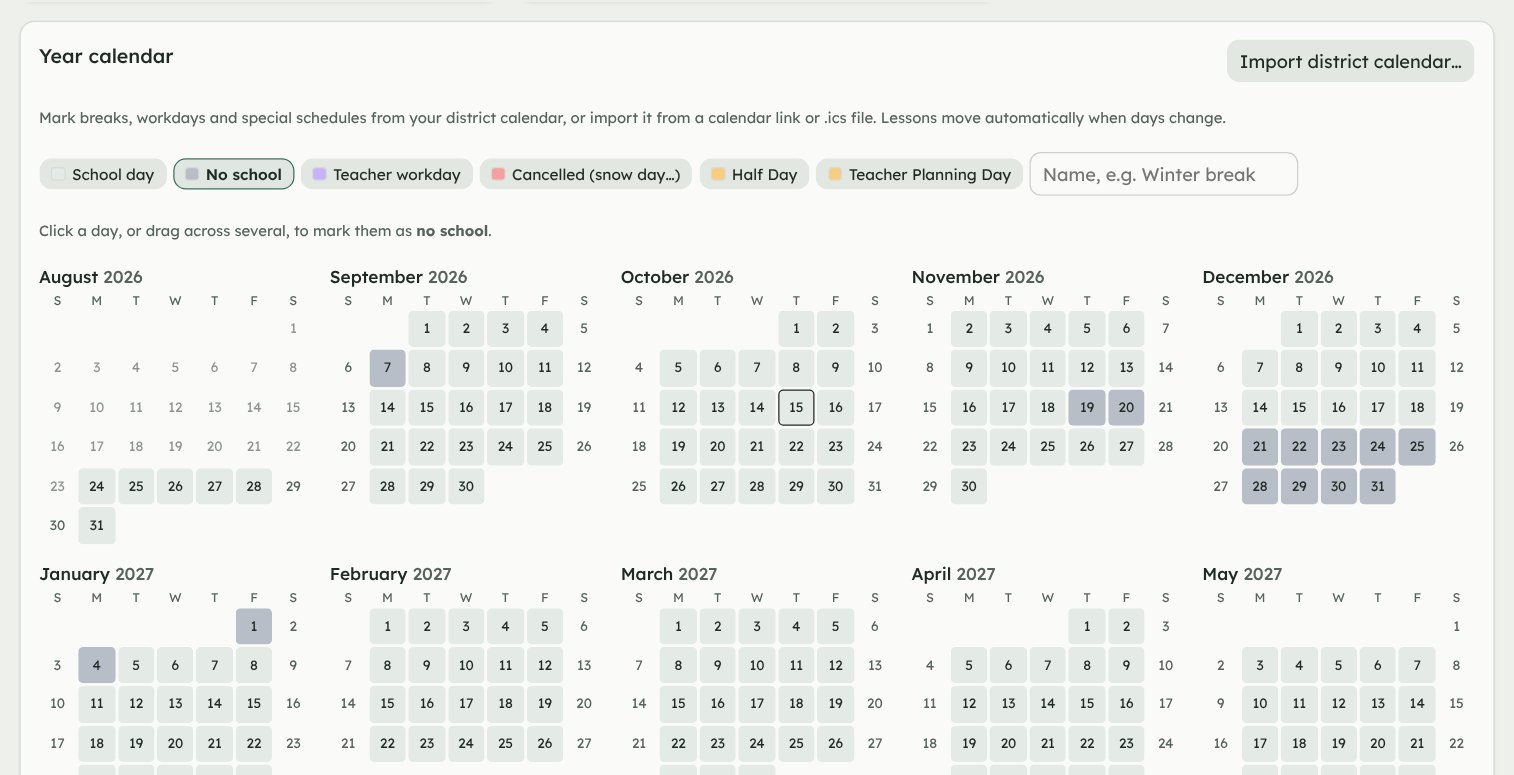
Set up the whole year in minutes.
Import your district's calendar from Google Calendar, Outlook or an .ics file, and Teacher Planner picks out the first and last day, breaks, workdays, early releases and quarter ends. You see every change before it's made. Or paint days off right on the year calendar.
- Enter your bell schedule once and put each class in its period
- Early release and assembly schedules with their own times
- Quarters, trimesters or semesters for the gradebook
Lessons your way
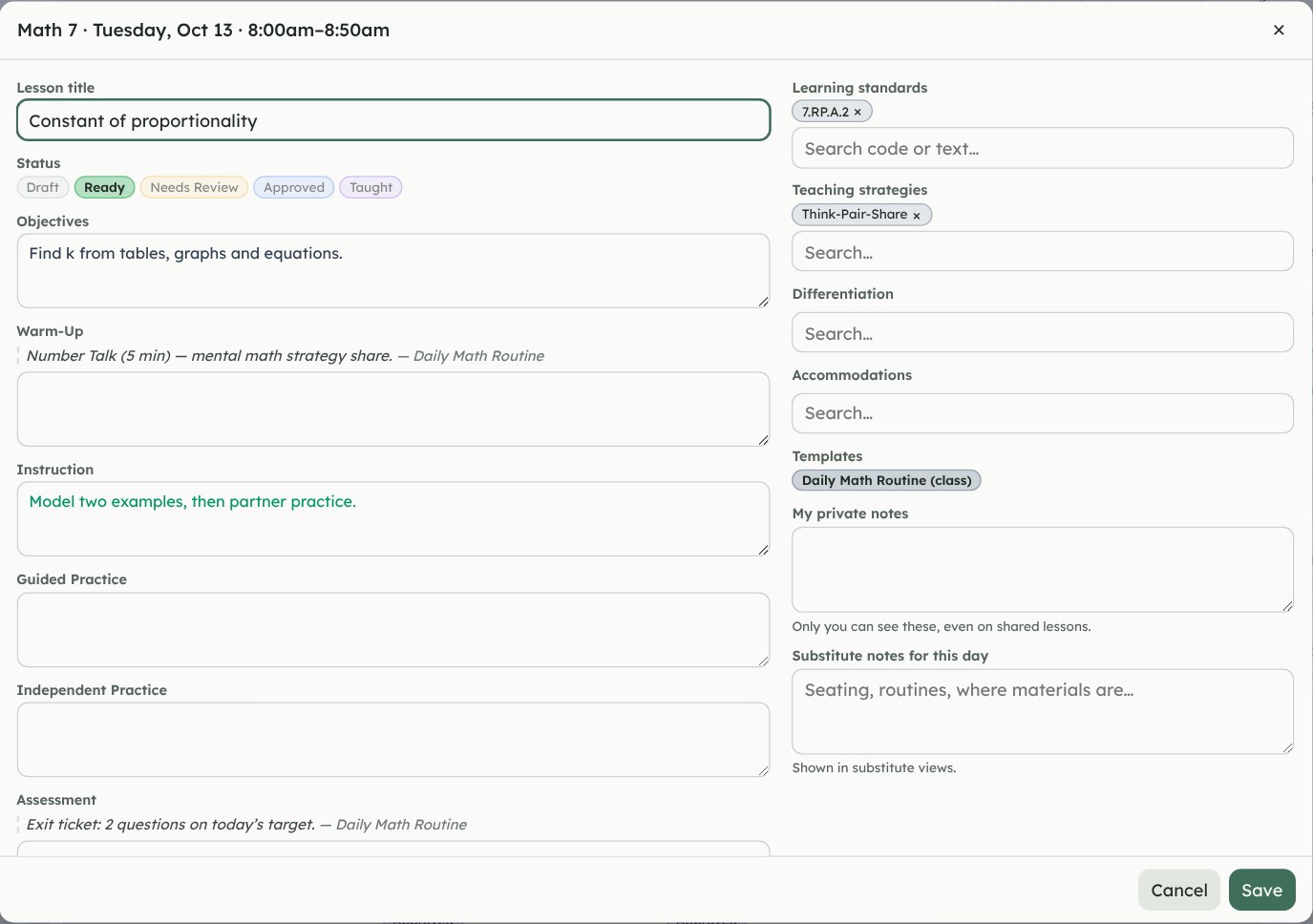
Your lesson format, not ours.
Set up to ten sections for each class, or start from a familiar layout like 5E, Madeline Hunter, Gradual Release or Workshop. Attach videos, links and files, and tag lessons Draft, Ready or Taught.
- Templates add your daily warm-up or exit ticket automatically
- Strategies, differentiation and accommodations at a click
- Search every lesson you've ever written
Standards
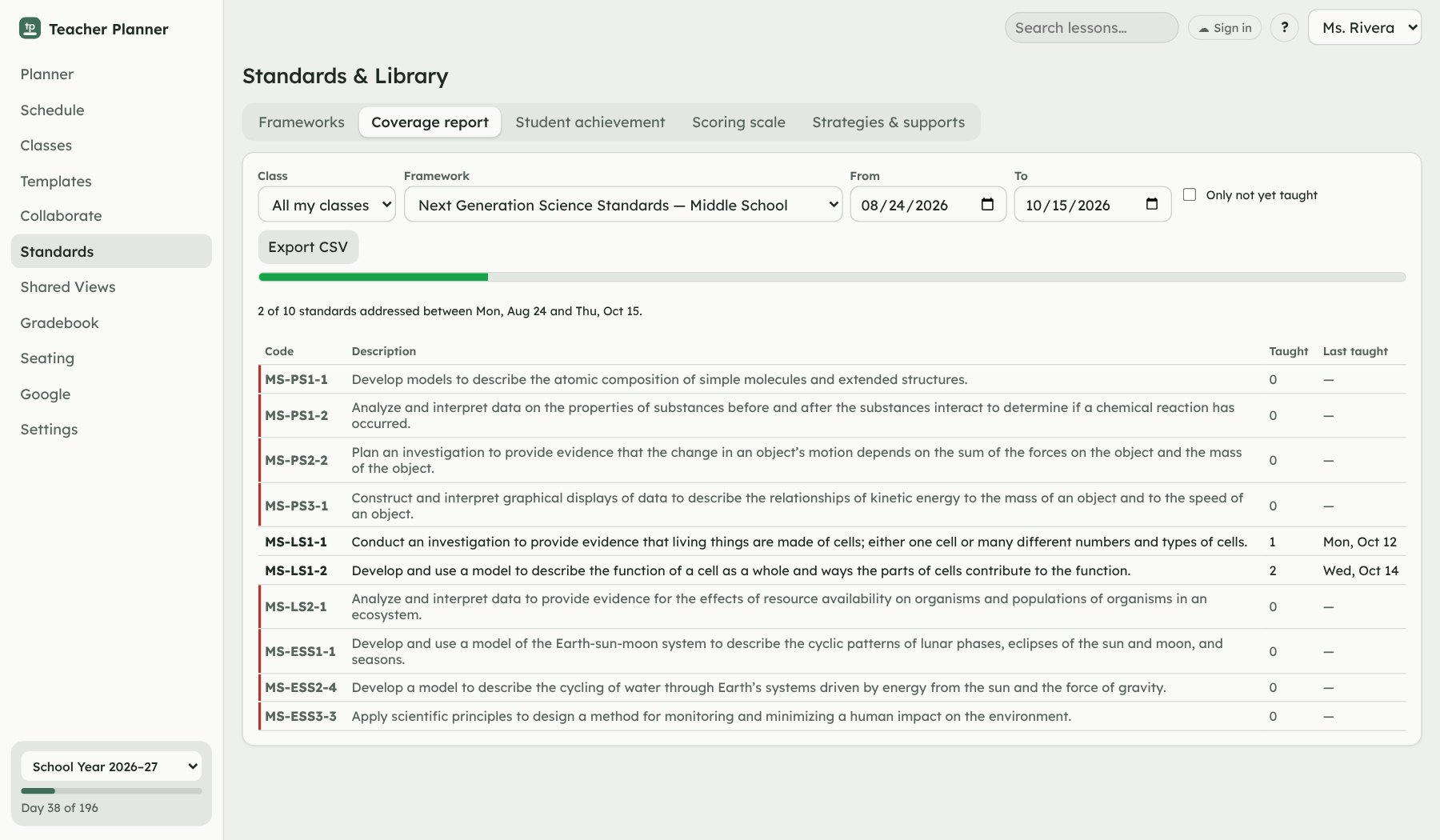
See what you've taught, and what you haven't.
Tag lessons with standards and Teacher Planner keeps count. The coverage report lists every standard in a framework and how often you've taught it, so gaps stand out before the end of the year.
- Your state's math, ELA, science and social studies standards, for all 50 states and D.C.
- Add district standards from a spreadsheet
- Score students on standards with your own scale
Sub plans and printing
Sub plans, ready before you are.
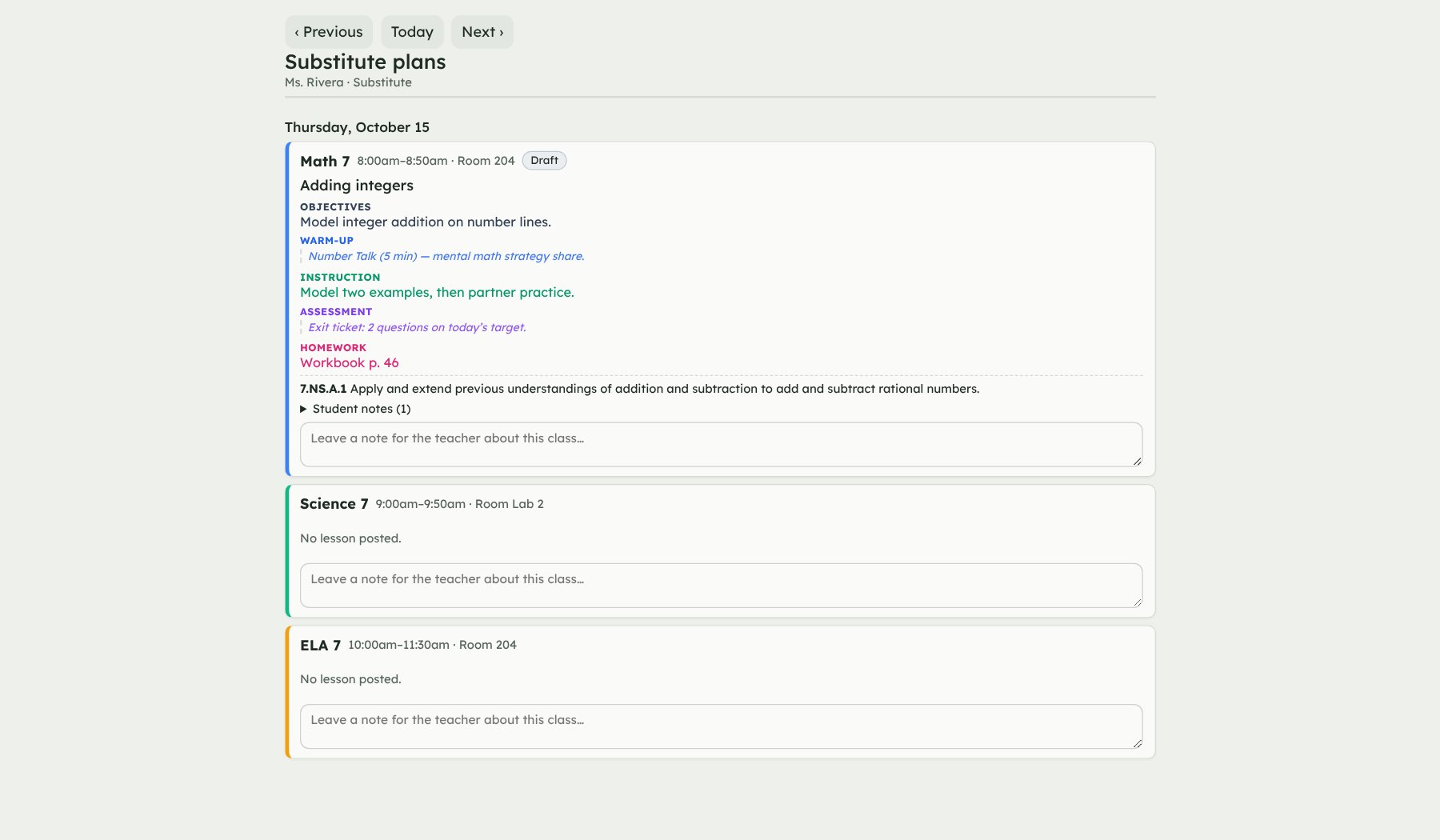
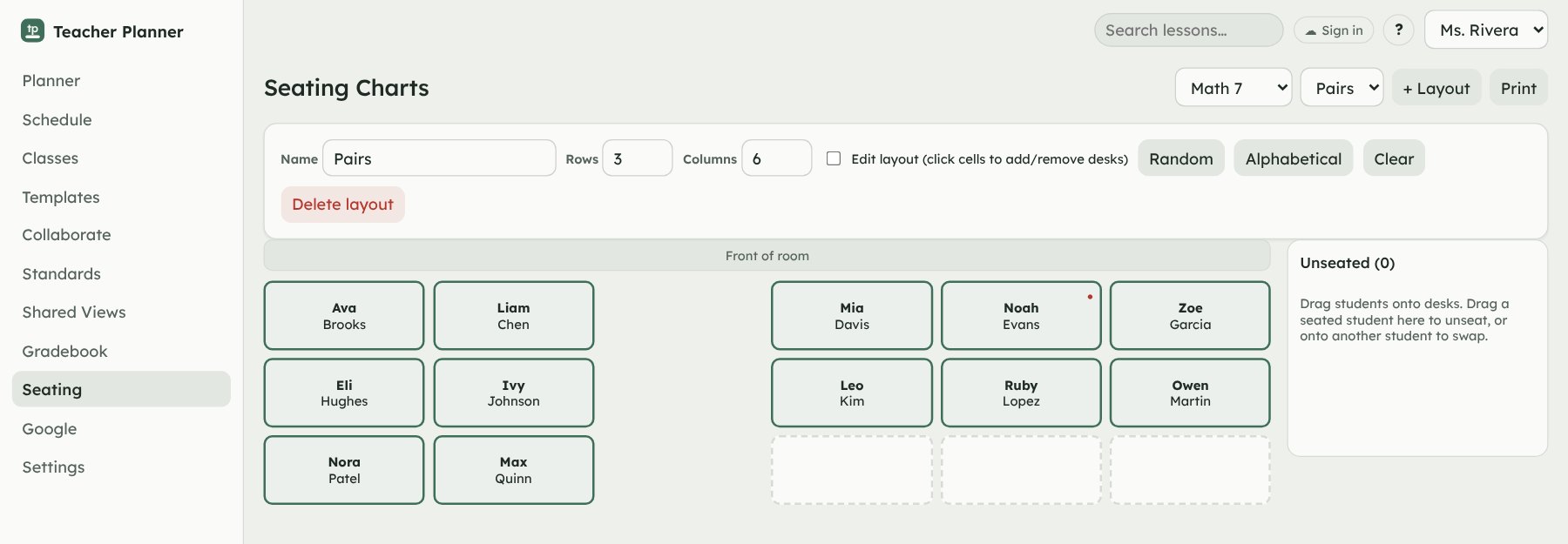
Make a one-click sub packet with the day's schedule, lessons, your notes, class lists and seating charts, or a weekly lesson-plan PDF for your principal. You can also share read-only views with students, families or a substitute.
- Weekly plans as a PDF, arranged by day or by class
- Choose exactly which classes, sections and days each view shows
Plan with your team
Share lessons and your school schedule.
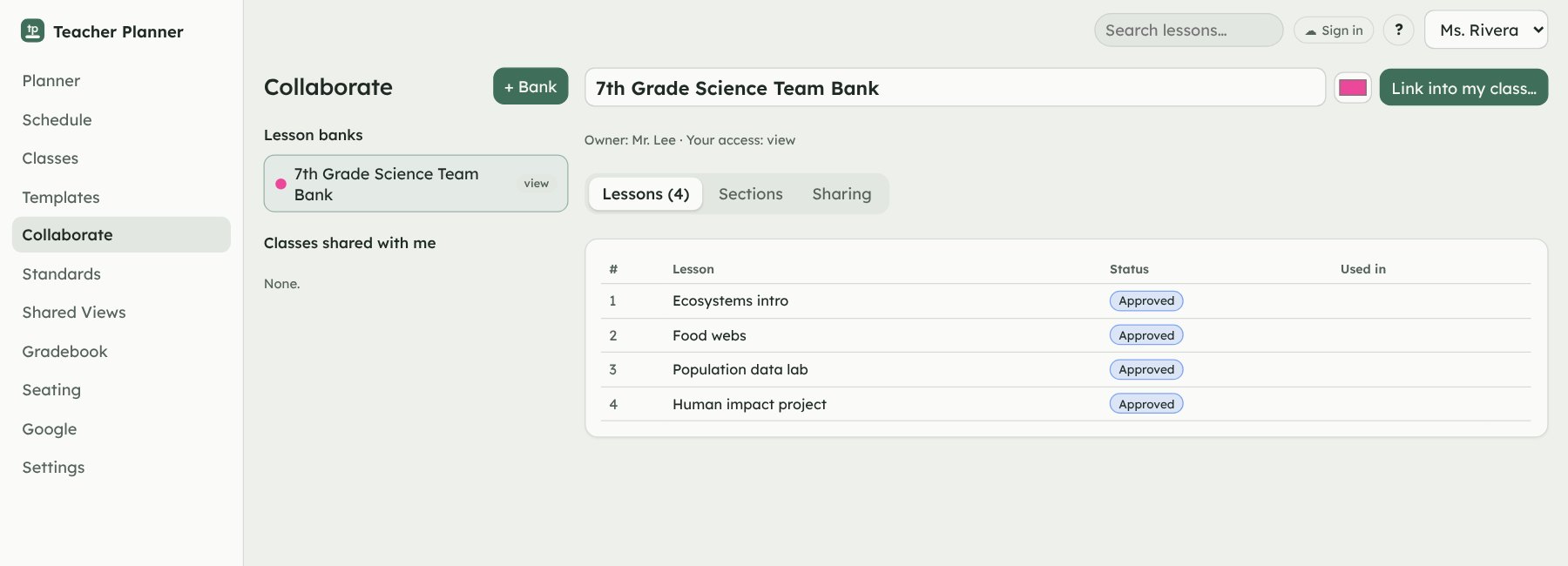
Build a unit together in a team lesson bank, then link its lessons into your own classes. They stay up to date when a teammate improves one, but your schedule stays yours. Sharing is optional and needs a free sign-in with your school email.
- One teacher shares the school calendar and bell schedule; colleagues join with a code
- View-only or edit access for each teammate
- Only the lessons you share go online. Rosters, grades and private notes never do.
Your files
Your plans are just files, on your computer.
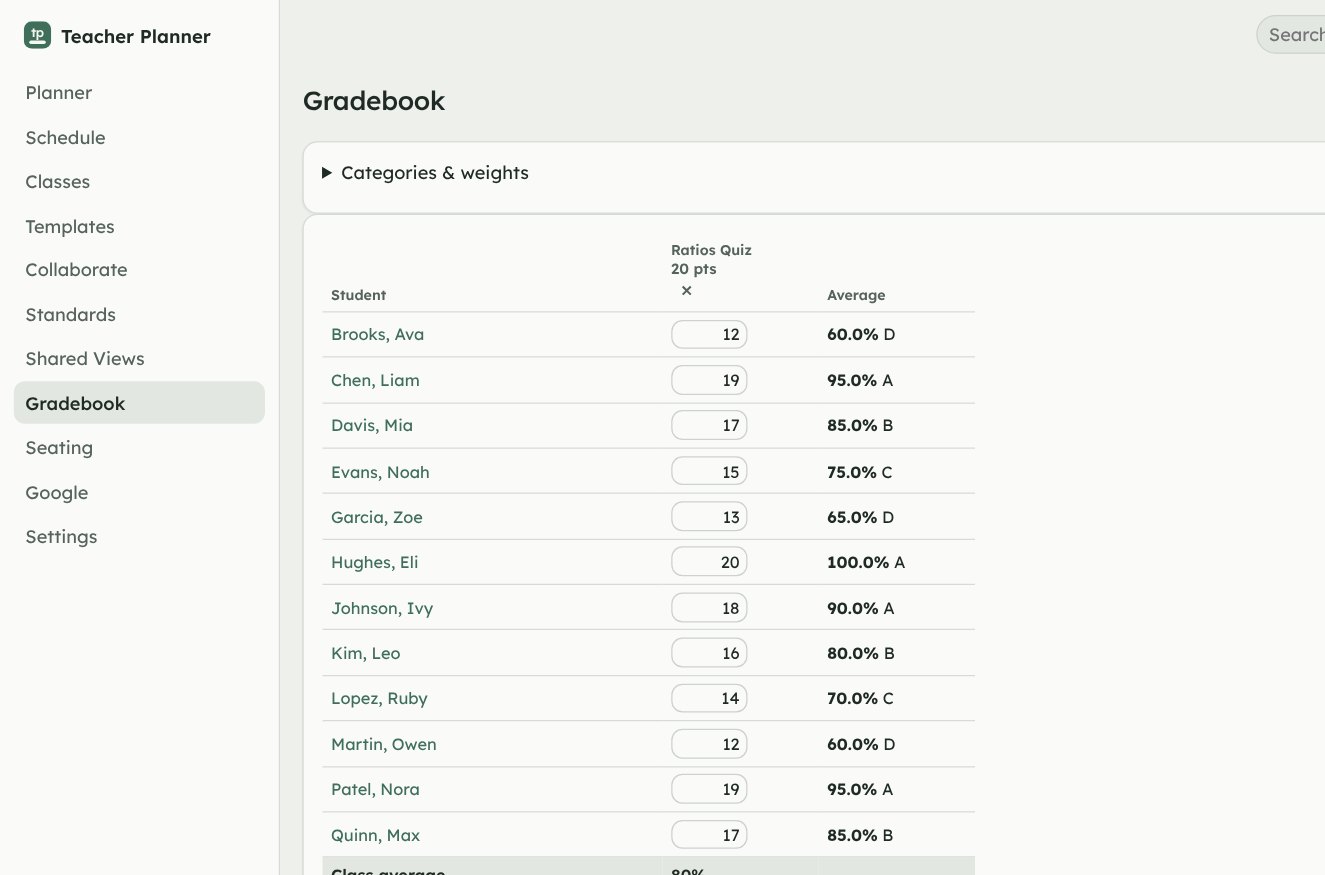
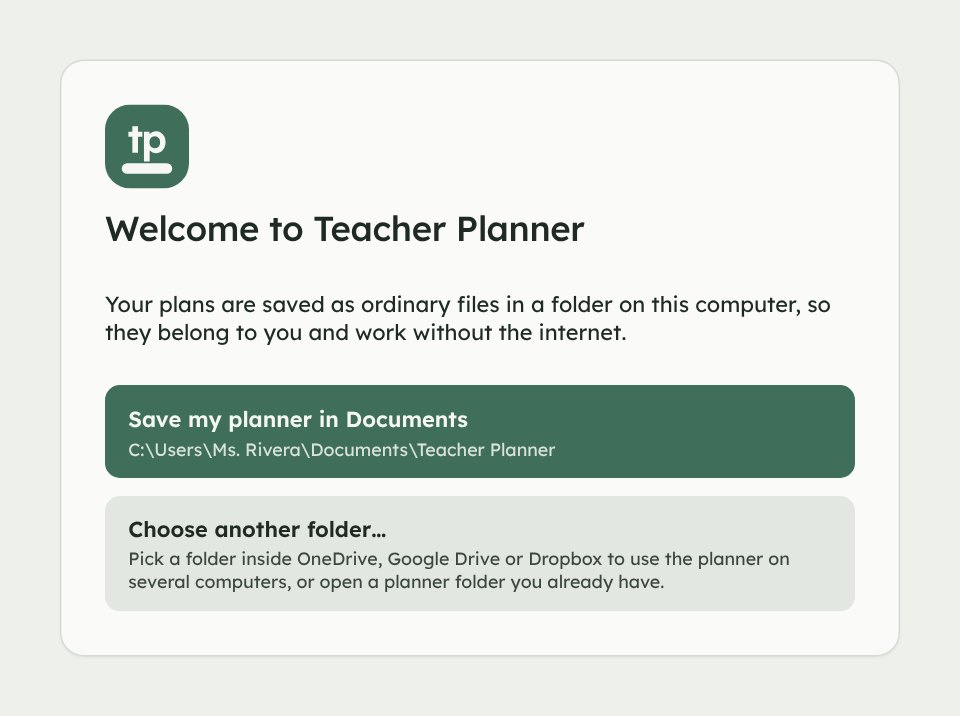
When you first open Teacher Planner, you choose a folder. Everything you make is saved there as ordinary files, not on someone else's server, so your plans are still there even if you stop using the app.
- Works offline. No Wi-Fi in your room? No problem.
- No sign-up. No account or password to remember. You only sign in if you want to share with colleagues.
- Daily backups for the last 30 days, plus undo.
- Home and school: keep the folder in OneDrive, Google Drive or Dropbox and open it on both computers.
Download Teacher Planner
The newest version, for every computer.
Windows
Windows 10 and 11
Download for Windows- Open the downloaded file. If your browser asks, choose Keep.
- If you see "Windows protected your PC", click More info, then Run anyway.
- It installs in a few seconds and adds a desktop shortcut. No administrator password needed.
Mac
Intel and Apple silicon
Download for Mac- Open the downloaded file and drag Teacher Planner into Applications.
- Open it. If your Mac says it can't be opened, go to System Settings → Privacy & Security, scroll down and click Open Anyway.
- You only need to do this the first time.
Linux
Ubuntu, Debian and most others
Download AppImage or the .deb package- AppImage: right-click the file, open Properties, allow it to run as a program, then open it.
- .deb: open it with your software installer.
On Windows and Linux, Teacher Planner updates itself: new versions download in the background and install when you restart. On Mac, the app tells you when a new version is out and brings you back here. You can check any time under Settings → Updates.
Teacher Planner runs on Windows, Mac and Linux computers. It isn't available for phones, tablets or Chromebooks yet, so open this page on a laptop or desktop to download it.
Questions
Do I need the internet to use it?
No. It works completely offline. You only need the internet to download it, to get updates, to add your state's standards, to share with colleagues, and if you choose to sync your planner folder with OneDrive, Google Drive or Dropbox.
Where are my plans saved?
In the folder you pick the first time you open the app, usually Documents → Teacher Planner. Your classes, lessons and grades are in a file called planner.json, attachments are in an attachments folder, and a daily backup goes in backups. In the app, Settings → Data → Open folder takes you there.
Can I use it at school and at home?
Yes. Choose a folder inside OneDrive, Google Drive or Dropbox when you set it up, then install Teacher Planner on your other computer and choose the same folder. Use one computer at a time so changes don't overwrite each other.
Can I share plans with my team?
Yes. Sign in under Settings → Online account with your school email (we email you a code, so there's no password), then share a lesson bank from Collaborate and invite teammates by email. On the Schedule page, one teacher can share the school's calendar and bell schedule, and colleagues join with a code.
Why does my computer warn me when I install it?
Windows and Mac show a one-time warning for apps that haven't been registered with Microsoft or Apple yet. Follow the steps under Download for your computer.
What if I delete something by mistake?
Use Undo (Ctrl+Z, or Edit → Undo). For older mistakes, Settings → Data → Restore an earlier version brings back any of the last 30 daily backups.
What about student privacy?
Rosters, grades and notes stay on your computer in your planner folder. Teacher Planner doesn't send them anywhere. If you share a lesson bank or your school's schedule, only those lessons or that schedule go online, never student information or your private notes. As always, follow your district's rules about where student information may be stored, especially if your planner folder syncs to a cloud drive.
Does it work on a Chromebook, iPad or phone?
Not yet. Teacher Planner runs on Windows, Mac and Linux computers.